Written against CustomDOM v1.13 for NinjaTrader 8. Version-specific changes are in CHANGELOG.txt inside your download, and on the product page.
| Section | Covers |
|---|---|
| 01 — Install | The two zips, the New-menu name, activating your license |
| 02 — Trading from the ladder | Click to order, quantity, the toolbar |
| 03 — Brackets | Tick, ATR, dollar and custom modes; breakeven offset |
| 04 — Risk guardrails | Daily loss, per-trade loss, size caps, lockouts |
| 05 — Levels on the ladder | Read this one. Why the ladder and your chart can disagree |
| 06 — Audio order flow | Hearing the tape, and the settings that matter |
| 07 — Reading order flow | Columns, Time & Sales, ATR shading |
| 08 — Settings reference | What lives in each of the six tabs |
| 09 — Controls | What each mouse gesture places, and what can be bound to a key |
| 10 — Troubleshooting | In the order that has actually resolved reports |
01 — Install
CustomDOM installs as a NinjaScript Add-On. It appears under Control Center → New → CustomDOM.
CustomDOM-v<version>.zip — with a hyphen — holds the documentation plus CustomDOMv<version>.zip, no hyphen, which is what NinjaTrader imports. The hyphen is the only difference in the name. If NinjaTrader says the file is incompatible, that is this and nothing else — the package was handed to the importer instead of the file inside it.
- Unzip the download — the outer file, with the hyphen.
- In NinjaTrader: Tools → Import → NinjaScript Add-On…
- Select the inner zip, from inside the folder you just unzipped.
- Restart NinjaTrader.
- Open it from Control Center → New → CustomDOM.
Activating
On first run a License Required overlay appears with a key field and an Activate button. Paste your key there.
After that, the key lives in Settings → Account → License Key, which is where you change it. When you replace a computer, release the old one from your account page so its place is free for the new one.
Flatten and Cancel All stay live behind the overlay, so an open position is never trapped by the license screen.
Using CustomDOM on more than one computer
A license is registered on one computer — the first computer that opens CustomDOM with your key. If you need a second, for example a desktop at home and a laptop when you travel, contact support.
Several CustomDOM windows on the same computer are fine — they share one license check and never take over from each other.
On a license registered to one computer, a different computer is told the license is already in use on another machine, with a link to release it from your account — release the old computer first (below), and the new one takes its place.
If your license has more than one computer registered and you open CustomDOM on one while it is still running on another, it shows In Use on Another Computer and asks before doing anything:
Choose Take over to move to this computer, or Cancel to leave it where it is. Nothing changes until you choose. After Cancel it says “CustomDOM stays off on this computer. To use it here, reopen it and choose Take over.”
If you take over, the first computer shows Taken Over by Another Computer within about two minutes and stops accepting new orders: “New orders are off on this computer — you can still close positions here.” To use CustomDOM there again, reopen it and choose Take over.
If CustomDOM or NinjaTrader closes unexpectedly, the next computer may show the notice for a few minutes afterwards — choose Take over. A brief loss of internet does not stop CustomDOM; only another computer taking over does.
Releasing a computer from your TradersForge dashboard frees its place for a different computer. If it was the one running CustomDOM, it shows Computer Released and stops accepting new orders within about two minutes.
02 — Trading from the ladder
Every order is placed by clicking a price row. There is no order ticket.
| Action | Result |
|---|---|
| Left-click the Bid column | Buy limit at that price |
| Left-click the Ask column | Sell limit at that price |
| Right-click any row | Stop order at that price |
| Right-click and drag an order | Move it to a new price |
| Double-click the Bid or Ask column | Market order — buy on the Bid side, sell on the Ask side |
| Enter | Buy limit at the selected row — there is no sell-side keyboard equivalent |
| Left-click the Price column | Cancel the working orders at that price |
Those are the defaults for placing orders. From v1.10 each gesture is a setting — you can make left-click place stops, have it decide from the market the way a Tradovate DOM does, or switch a gesture off entirely. See section 09.
The pending-orders banner
The banner above the ladder reports working orders across every connected account, not just this DOM’s. Right-click it for a menu that can cancel one order, cancel a whole group, cancel everything it lists, or switch this DOM to that account and instrument — which is how you get to an order you left somewhere else without hunting for it.
Quantity
The 1 2 3 4 5 buttons set the working quantity, and the dropdown beside them holds larger sizes. Whatever is selected is what every click sends.
Toolbar
| Buy Mkt / Sell Mkt | Market order, current quantity |
| Buy Bid / Sell Ask | Limit order joining the near side |
| Flatten | Close the position on this instrument |
| Cancel All | Cancel working orders on this instrument |
| Reverse | Flip long to short, or short to long. From v1.12 it first cancels every order on the closing side — not only CustomDOM’s own — so a leftover stop cannot add to the new position |
| Breakeven | Move every stop protecting the position to entry, plus the configured offset |
| Trail Stop | Start trailing the stop |
| Center | Re-center the ladder on the last price |
| Lock | Disables click-trading, so the ladder can be read without risk of an accidental order |
03 — Brackets
A bracket attaches a stop and a target to a filled position. The mode dropdown sits under the button row.
| Mode | Stop and target measured in |
|---|---|
| None | No bracket |
| Ticks | Fixed tick distance |
| ATR | A multiple of current ATR, so the bracket widens in fast markets |
| $ PnL | Dollar risk and dollar target |
| Custom | Per-instrument values you set yourself |
Bracket is off by default on a new DOM. Turn it on with the Bracket checkbox, or set Settings → Brackets → Default Bracket On if you want every new DOM to start with it armed. A saved workspace keeps whatever state it was saved with.
Breakeven Offset controls how far beyond entry the stop lands when you press Breakeven — set it to cover commission rather than exactly zero.
From v1.12, Breakeven moves every stop protecting your position — including stops you placed yourself — and never moves a stop that is already better. The breakeven price rounds in your favor. Pressing Trail Stop with Breakeven armed, or Breakeven with a trail running, hands over from one to the other instead of leaving two stops.
04 — Risk guardrails
Per-account limits enforced by the DOM itself, independently of your broker or prop firm. Configured in Settings → Risk.
| Guardrail | What happens when it trips |
|---|---|
| Daily loss ($) | Flattens, cancels working orders — even with Lock on — and locks the account against new entries until the 17:00 session rollover. Exits stay allowed. |
| Loss per trade ($) | Flattens that one position. No lockout. |
| Max Minis / Max Micros | Blocks entries that would exceed the cap — and flattens a position that is already over it. |
| Max Order Qty | Rejects any single order larger than this. |
| Market Safety / Market Lock | Guards against accidental market orders. |
A cap of 0 blocks that contract class entirely.
When an account is locked you will see RISK LOCKOUT on the DOM and orders will be refused with the reason. Clear it manually in Settings → Risk → Active lockouts, or let it clear itself at the 17:00 rollover.
A per-account daily-loss guard overrides the global Max Daily Loss for that account, so the two never double-enforce.
Smart Breakeven
New in v1.12 and on by default: Settings → Risk → Smart Breakeven (“Keep stops sized to the position”). When you take contracts off, your stops and targets shrink to match what is left. When you go flat, any stop still working is canceled, so a stray order can’t open a position in the other direction. It covers stops from any source on this account and instrument, not only CustomDOM’s.
05 — Levels on the ladder
Pivots, VWAP, volume profile, EMA and SMA can all be drawn on price rows. This section exists because “these levels don’t match my chart” is the most common question about CustomDOM — and it usually has one of three specific answers.
What can be shown
In Settings → Display → Overlay indicators: Pivot Points (with a Pivot Type of Traditional, Fibonacci, Woodie, Classic, DeMark or Camarilla), Globex VWAP, RTH VWAP with standard-deviation bands, Volume Profile (POC, VAH, VAL), and EMA / SMA levels.
Volume profile will not match exactly — by design
The ladder’s POC, VAH and VAL are computed at tick granularity: every traded price is its own bucket. A chart’s volume profile typically buckets the session range into a few dozen rows instead. Both are correct; they answer slightly different questions. Expect the ladder’s POC to sit within a few ticks of the chart’s rather than exactly on it — a ladder row is a discrete tradable price, so precision there is worth more than matching.
When a level looks wrong, compare inputs — not outputs
New in v1.11: Settings → Display → “Why is a level here?” Open the report and it shows the inputs behind every level — which instrument the data came from, the session windows used, and the running totals. A level that looks wrong can be checked against your chart in one step instead of guessed at.
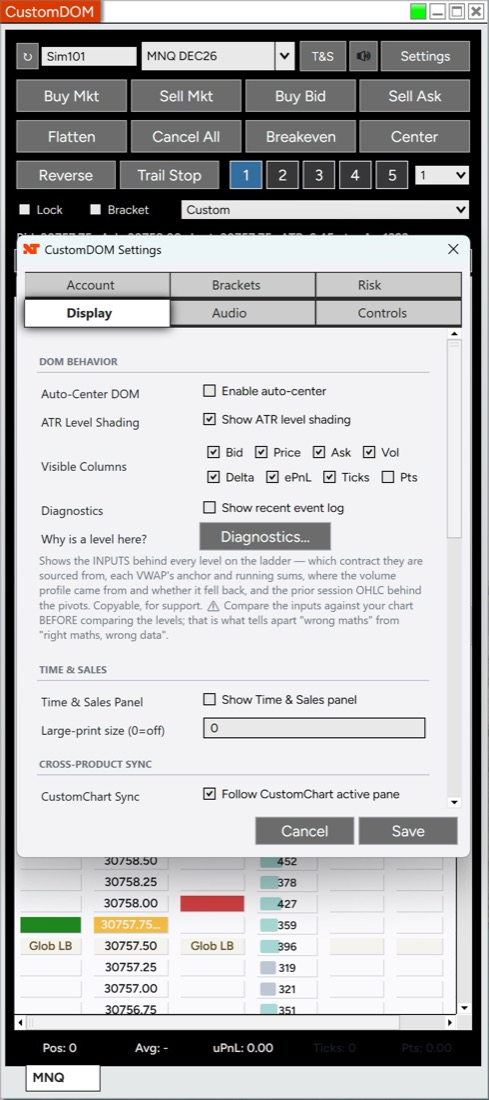
For pivots specifically, turning on Settings → Display → Diagnostics also logs the numbers the loader actually used:
Pivots (Traditional): prior session O… H… L… C… (settlement) → P…
Compare the inputs against your chart before comparing the levels — that is what tells apart “wrong maths” from “right maths, wrong data”. Check those four inputs before looking at anything else. If the high and low match but the close does not, it is the session template. If the spacing between R and S levels is wrong too, it is the session boundary. Solving a level back to its inputs settles in one step what comparing levels can take an afternoon to guess at.
VWAP price source is selectable from v1.11 in Settings → Display: OHLC4, HLC3, HLCC4, HL2 or Close. Upgrading changes nothing — an existing install keeps the behavior it had, and only a fresh install defaults to OHLC4.
From v1.12, jumping around in Market Replay reloads the DOM’s levels for the new time, so they match the chart.
Levels stay hidden until their historical data has loaded, so nothing shows a half-seeded value at the open. A level that sits outside the ladder’s visible price range simply is not drawn — absence is not evidence it is wrong.
06 — Audio order flow
CustomDOM can play the tape, so you can follow order flow with your eyes somewhere else. Settings → Audio.
| Pitch | Side — buys sound high, sells sound low |
| Loudness | Size — three tiers, under 6 / 6–24 / 25 and up |
| Accent | A distinct mark on unusually large prints |
| Rate | Tape speed, for free — a busy tape simply sounds busy |
Audio is off by default. Turn it on in the Audio tab, or with the speaker button on the toolbar next to T&S — a red diagonal slash across the speaker means muted. No sound files are installed; the tones are generated in memory, so there is nothing extra to ship or go missing.
The settings that matter
- Min print size — silence the retail noise and hear only size. Start at 0, raise it until the tape sounds informative rather than constant.
- Max sounds / second — the rate cap. On a fast tape the prints are coalesced so you hear intensity rather than a solid tone.
- Large-print accent — reuses the same size threshold as the Time & Sales large-print highlight, so what you see flagged and what you hear accented agree.
The large-print threshold lives in Settings → Display → Large-print size, not in the Audio tab — one number drives both the visual highlight and the audible accent.
07 — Reading order flow
Beyond the resting book, CustomDOM shows what has actually traded.
Columns
Choose which appear with Settings → Display → Visible Columns: Bid, Price, Ask, Vol, Delta, ePnL, Ticks, Pts.
- Vol — volume traded at each price this session, drawn as a bar so the profile shape is visible down the ladder.
- Delta — buying minus selling pressure at that price. Choose when it starts counting in Settings → Display → Delta reset → Count from: Globex open (6:00 PM ET), the default, or the instrument’s RTH open.
- ePnL — what your open position would be worth if price reached that row.
- Ticks / Pts — distance from your entry.
Time & Sales
The T&S button opens the tape beside the ladder: prints colored by aggressor, with large prints highlighted. It uses the data the ladder already receives — no extra subscription.
Where the numbers come from
Everything on the ladder is built from the trade and quote stream the DOM already subscribes to. There is no second data feed and nothing extra to pay for.
| What you see | Built from |
|---|---|
| Bid / Ask sizes | Level 2 depth, as your provider sends it |
| Vol, Delta, Volume Profile | Every trade that prints, accumulated per price for the session — or, live, NinjaTrader’s own Order Flow data when your license includes Order Flow+ (below) |
| Time & Sales, audio order flow | The same print stream — each trade’s price and size, with the side taken from whether it hit the bid or lifted the ask |
| VWAP, pivots, EMA / SMA, ATR | Historical bars requested once at startup, then kept current from the live stream |
With NinjaTrader Order Flow+ (v1.12). If your NinjaTrader license includes Order Flow+, live Delta, VWAP and Volume Profile come from NinjaTrader’s own Order Flow data, so they match its numbers minute by minute. NinjaTrader can hand add-ons the same live trade more than once, which inflated live volume before this version. Without Order Flow+, CustomDOM builds them from the trade stream as before — nothing to configure either way.
“Δ: loading order flow…” and “Δ: order flow stalled · reloading…” (new in v1.13) can replace the Delta readout in the status panel. When a second connection comes up in NinjaTrader — for example a prop-firm account connecting after your data account — NinjaTrader can stop sending CustomDOM its order flow data. CustomDOM notices and reloads it by itself; while it does, Delta shows the caption instead of a frozen number, and VWAP and Volume Profile catch up afterwards. Loading shows while a DOM opens. It only reloads while trades are still printing, so a quiet market is never mistaken for a stall. Each reload is noted in the event log: “Order flow stalled (…): reloading Δ. Next restart allowed in … s.”
Is the price feed current?
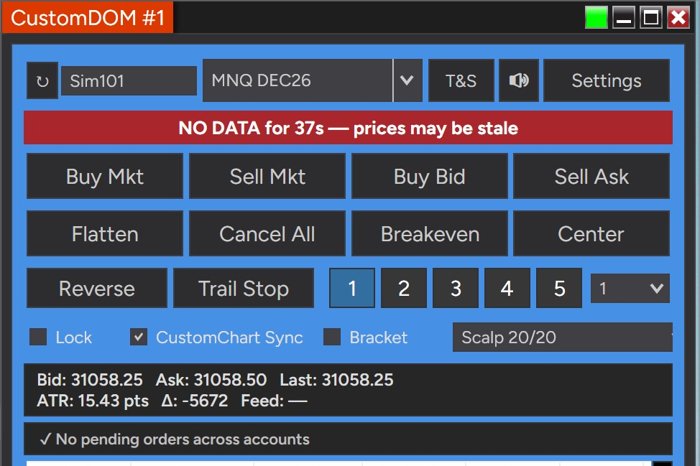
New in v1.12. A red strip across the top of the DOM tells you when the prices on screen may be out of date:
| The strip says | Meaning |
|---|---|
| PRICE FEED LOST (…) — prices may be stale | NinjaTrader lost its price connection |
| NO DATA for 12s — prices may be stale | No prices have arrived for several seconds |
| DATA DELAYED 4s — prices are behind the market | Prices are arriving, but late |
It clears on its own when prices are current again, and it is not shown in Playback.
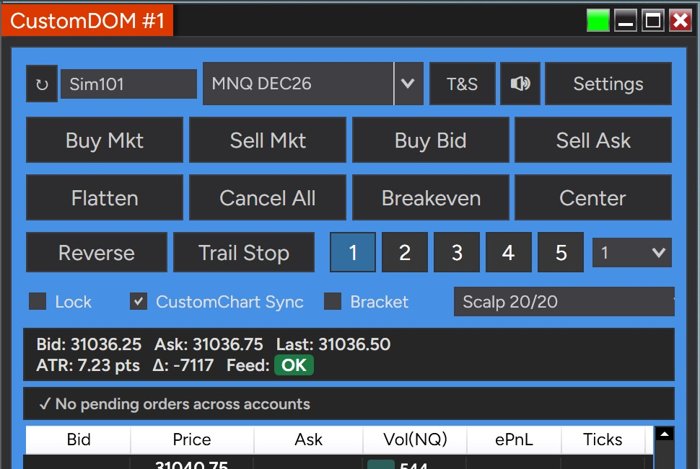
The status panel under the toolbar now has two rows — Bid / Ask / Last, then ATR / Delta / Feed. Feed: OK in green means prices are current; otherwise it shows the delay in seconds, amber from 1 s and red from 3 s. It is on by default; turn it off in Settings → Data → Feed delay (“Show feed delay (how far live prices lag the exchange)”). The red DATA DELAYED warning appears either way. It allows for your computer’s clock being a little off, so a clock a few seconds fast or slow does not cause false warnings.
ATR shading
ATR Level Shading tints the ladder by distance from price in ATR terms, so a move’s size registers relative to current volatility rather than as a raw tick count.
08 — Settings reference
Seven tabs, reached from the Settings button.
| Tab | Holds |
|---|---|
| Account | License key, default account, routing colors that tint the DOM by account so a live account never looks like a sim one, and an optional color for this window only |
| Brackets | Default bracket on/off, tick / ATR / dollar bracket values, breakeven offset, trail stop |
| Risk | Order-quantity and daily-loss limits, market-order safety, Smart Breakeven, per-account guardrails, active lockouts |
| Display | Theme, auto-center, ATR shading, visible columns, diagnostics, Time & Sales, CustomChart sync, every overlay level, delta reset |
| Audio | Audio order flow — enable, volume, minimum print size, large-print accent, rate cap |
| Controls | Mouse order entry — what each click places — and keyboard bindings. Called Hotkeys before v1.10. |
| Data | Feed delay — the Feed status beside ATR and Delta. New in v1.12 |
Skins and colors
New in v1.11: CustomDOM follows your NinjaTrader skin. Pick any of NinjaTrader’s skins and the ladder, the settings window and the Time & Sales panel follow it — light skins give you a light DOM, dark skins look exactly as they always have. From v1.12 you can also override it: Settings → Display → Theme is Match NinjaTrader skin (the default), Light or Dark. CustomChart does the same from its v1.17, using the same palette, so the two windows match your platform and each other.
Your account colors are not changed. A live account looks exactly as you set it on every skin — that color is a safety signal, so the theme deliberately never touches it.
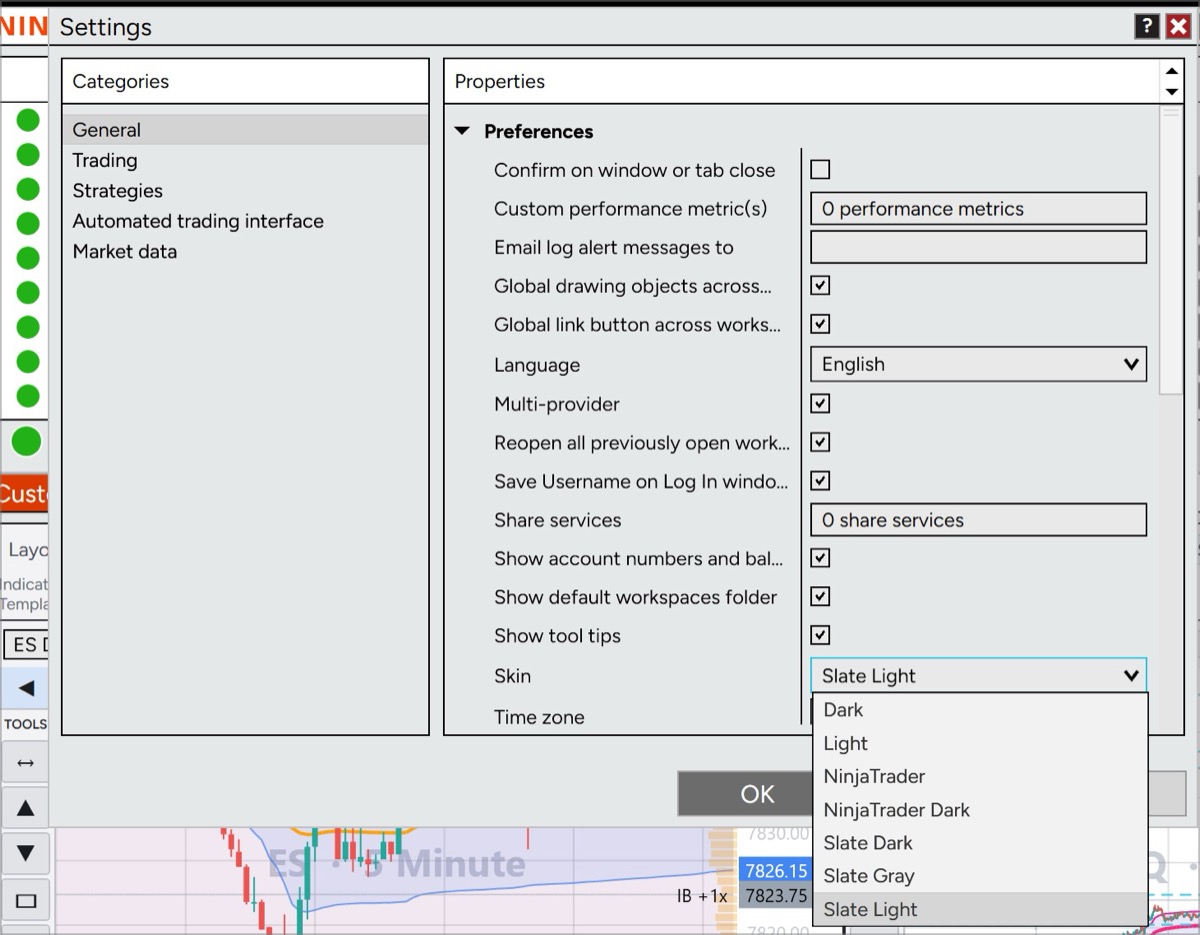
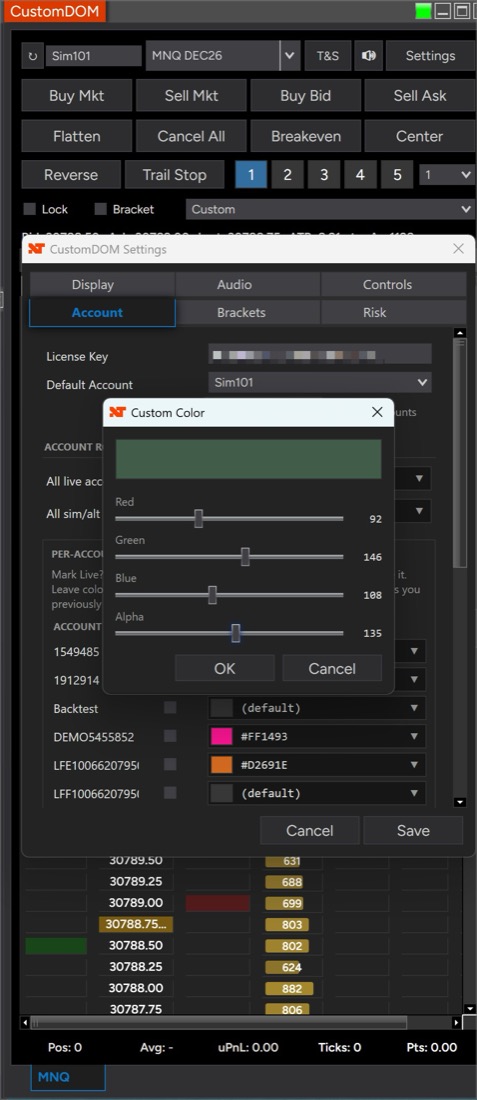
Anywhere you pick a color, v1.11 uses a picker matching NinjaTrader’s: choose from the palette, paste a hex code, or use Custom for exact RGB and opacity.
Several windows, and a color for each
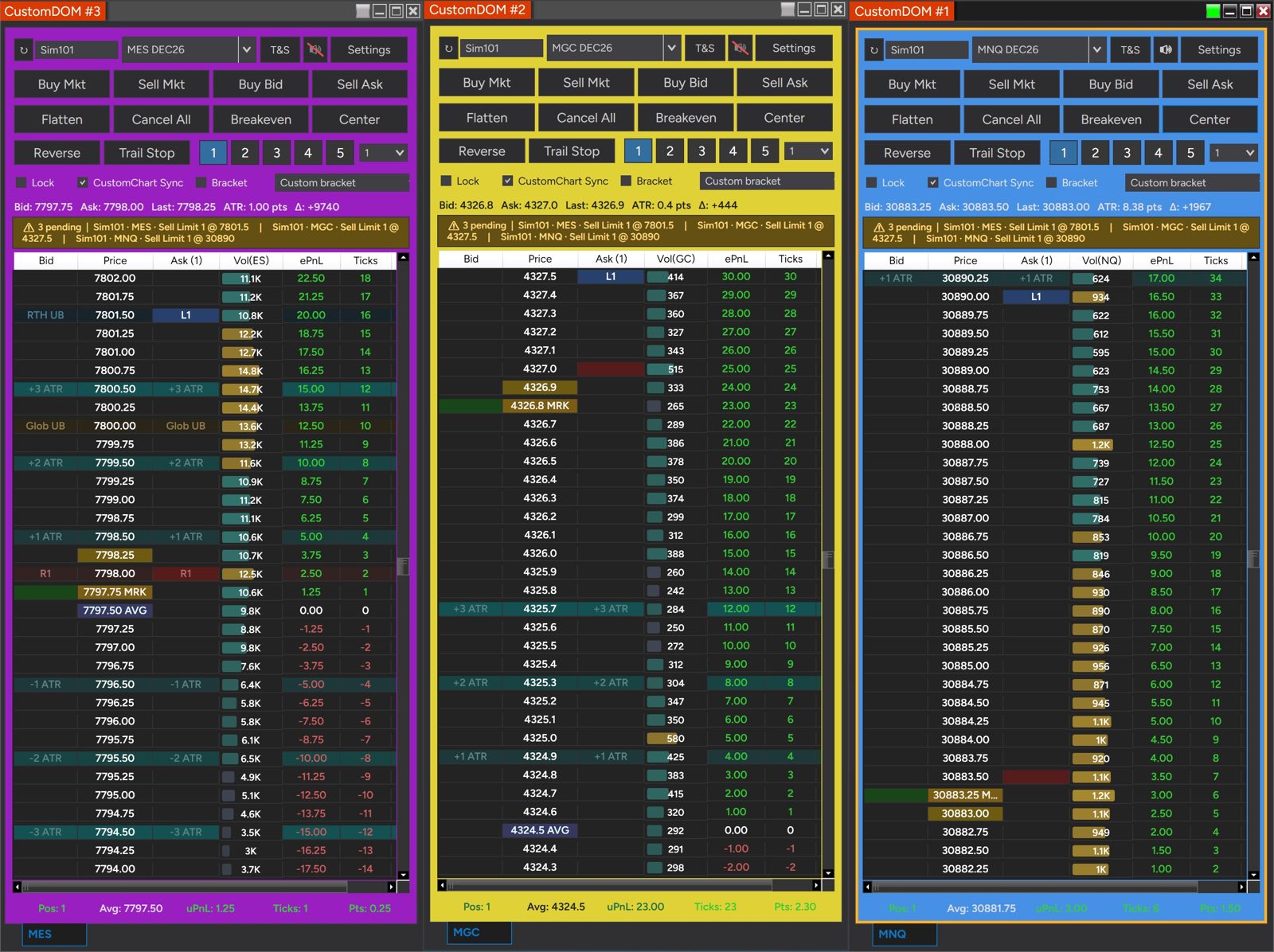
From v1.12, New → CustomDOM opens another window every time, titled CustomDOM #1, #2, #3… Each keeps its own instrument, account, link and settings, and all of them come back with your NinjaTrader workspace. CustomDOM #2 pairs with CustomChart #2, and so on. When several are open, keyboard shortcuts go to the one with the highlighted frame.
To tell windows apart at a glance, give one its own color: Settings → Account → This window (“Use my own color for THIS window”), then pick This window’s color. It is saved with that window in your workspace; other windows keep theirs.
Update notices
From v1.11 CustomDOM tells you when a new version is available, with a link to the download page. Decline and it will not ask again for that version — but it will let you know when the next one arrives.
09 — Controls
One tab, two halves: what each mouse gesture places, and what each key does. Reached from Settings → Controls.
Mouse order entry
New in v1.10. Each gesture is its own dropdown, so what a click will do is something you can read rather than something you have to remember.
| Gesture | Default |
|---|---|
| Left-click | Limit |
| Shift + left-click | Stop |
| Right-click | Stop |
Each of the three can be set to Limit, Stop, Auto (by market) or Off.
- Auto (by market) decides from the market: buying above the offer, or selling below the bid, places a stop; anything else a limit. Set left-click to Auto if you are used to a DOM that works that way.
- Off disables that gesture entirely — a way to rule out a whole class of accidental order.
- The defaults reproduce how CustomDOM has always worked, so nothing changes unless you change it. Your choices are saved between sessions.
Keyboard shortcuts
Bind any of these in the same tab. When several DOMs are open, they act on the one with the highlighted frame.
- Center DOM — re-center on last price
- Buy Bid — limit order joining the bid
- Sell Ask — limit order joining the ask
- Breakeven — stop to entry plus offset
- Flatten — close this instrument’s position
- Cancel All — cancel working orders
- Reverse, Trail Stop, Buy Mkt, Sell Mkt — new in v1.12. They have no default key, so nothing changes until you set one.
10 — Troubleshooting
Ordered by what has actually resolved real reports, not by what sounds most likely.
NinjaTrader says the file is incompatible
You imported the package instead of the file inside it. See §01 — import the inner zip, the one with no hyphen. This is the single most common install report and it has no other cause.
A level doesn’t match my chart
- Are you on a micro? Then you are correctly seeing the mini’s levels — see §05.
- Turn on Diagnostics and compare the logged prior-session inputs against your chart, not the levels themselves.
- High and low match but close doesn’t → set Pivot Session Template to your chart’s template.
- Is it the volume profile POC? A few ticks of difference is by design.
The ladder is live but no levels are drawn
Levels are seeded from historical bars, and they stay hidden until that data has loaded (see §05) — so if none of your pivots, VWAP or volume profile ever appear while prices tick normally, the question is whether NinjaTrader is delivering history, not whether CustomDOM is working.
Open a standard NinjaTrader chart on the same instrument. If it has no bars either, it is NinjaTrader’s data. Disconnecting and reconnecting in Control Center → Connections reassigns the historical-data server, which is the usual fix.
How do I cancel one order without canceling everything?
Left-click the row in the Price column. That cancels the working orders sitting at that price — you do not need Cancel All, which clears every order on the instrument.
One thing to be clear about: it works on the price level, not on an individual order. Every working order you have at that price goes, limits and stops together. If you want to remove one of two orders resting on the same price, drag the one you are keeping to a different price first — right-click and drag moves an order — then cancel the level.
My order was rejected, or the DOM says LOCKED
Check Settings → Risk → Active lockouts first. A daily-loss guardrail blocks new entries while still allowing exits, which reads like a broken DOM if you have forgotten it is set. The rejection message names the guardrail that fired.
A red strip says NO DATA, DATA DELAYED or PRICE FEED LOST
CustomDOM is telling you the prices on screen may not be current — see §07. Check the connection in Control Center → Connections first; PRICE FEED LOST and a long NO DATA usually mean NinjaTrader’s connection dropped. DATA DELAYED means prices are arriving late, which is the connection or the computer falling behind, not CustomDOM. The strip clears by itself once prices are current.
Delta says “order flow stalled · reloading…”
Nothing to fix — v1.13 noticed NinjaTrader stopped sending order flow while trades were still printing, usually after a connection came up, and is reloading it by itself. See §07. Before v1.13 Delta kept showing the last number as if it were live, so if you are on an older version, update.
The license check says it can’t connect
v1.13 says, when the license server no longer accepts its version:
Do exactly that: download the latest version and import it (see §01). Your license key and settings carry over. Any other license error ends “Try again, or contact support. If it keeps happening, install the latest version…” — try again first. Older versions show their old license error text after October 31, 2026; the fix is the same: install the latest version.
Quotes look stale, or the DOM feels sluggish
Turn on Diagnostics — CustomDOM writes a performance log to your NinjaTrader Documents folder. An inactive DOM repaints more slowly on purpose, and only on-screen rows are recalculated, so a large layout stays responsive. If a DOM genuinely lags, that log is what to send.
The Add-On doesn’t appear after importing
Restart NinjaTrader — NinjaScript Add-Ons are loaded at startup. Then check the New menu for CustomDOM.