Written against CustomChart v1.20 for NinjaTrader 8. Version-specific changes are in CHANGELOG.txt inside your download, and on the product page.
| Section | Covers |
|---|---|
| 01 — Install and license | The two zips, the New-menu name, license key and machine binding |
| 02 — The chart | Panes, layouts, favorites, Sync, appearance |
| 03 — Indicators | The built-ins, order flow, Rotation, Pivot Points and Initial Balance in detail |
| 04 — How sessions are decided | Read this one. Nearly every “these levels look wrong” question resolves here |
| 05 — Drawing tools | The rail, magnet, presets, the Long/Short position tool |
| 06 — Trading | The Trader panel, brackets, managing a position |
| 07 — Trade Review | The ledger, planning a trade you took, journaling, the Journal push |
| 08 — If something looks wrong | In the order worth checking |
01 — Install and license
Two zips, and the order matters. This is the single most common support question.
CustomChart-v<version>.zip, with a hyphen — is a wrapper. It holds the documentation plus the file NinjaTrader actually imports: CustomChartv<version>.zip, no hyphen. Unzip the outer file, then import the inner one. Handing NinjaTrader the wrapper is what produces “the file is not compatible with this version” — the import is fine, it was just given the wrong zip.
- Unzip the download. You’ll get a folder with
INSTALL.txt,README.txt,CHANGELOG.txtand the inner zip. - In NinjaTrader: Control Center → Tools → Import → NinjaScript Add-On…
- Choose the inner zip — the one with no hyphen.
- Restart NinjaTrader when prompted.
- Open it from the New menu — it’s listed as CustomChart.
Your license key
The first time the chart window opens, a License Required overlay appears. Paste your key there and press Activate. The overlay closes once the key is accepted and the chart is ready to use.
After that, the key lives in Settings → Account, where Activate / Change replaces it.
Moving to a new PC
When you replace a computer, release the old one on your TradersForge dashboard first, so its place is free for the new one. Then open CustomChart on the new computer and it registers itself.
Update notices
New in v1.19: CustomChart tells you when a newer version is available, once per session, with a link to the download page. Versions before v1.19 have no notice, so this starts with the next release after it.
Using CustomChart on more than one computer
A license is registered on one computer — the first computer that opens CustomChart with your key. If you need a second, for example a desktop at home and a laptop when you travel, contact support.
Several CustomChart windows on the same computer are fine — they share one license check and never take over from each other.
On a license registered to one computer, a different computer is told the license is already in use on another machine, with a link to release it from your account — release the old computer first (below), and the new one takes its place.
If your license has more than one computer registered and you open CustomChart on one while it is still running on another, it shows In Use on Another Computer and asks before doing anything:
Choose Take over to move to this computer, or Cancel to leave it where it is. Nothing changes until you choose. After Cancel it says “CustomChart stays off on this computer. To use it here, reopen it and choose Take over.”
If you take over, the first computer shows Taken Over by Another Computer within about two minutes and stops accepting new orders: “New orders are off on this computer — you can still close positions here.” To use CustomChart there again, reopen it and choose Take over.
If CustomChart or NinjaTrader closes unexpectedly, the next computer may show the notice for a few minutes afterwards — choose Take over. A brief loss of internet does not stop CustomChart; only another computer taking over does.
Releasing a computer from your TradersForge dashboard frees its place for a different computer. If it was the one running CustomChart, it shows Computer Released and stops accepting new orders within about two minutes.
02 — The chart
One window holds up to nine panes, each with its own instrument and timeframe.
Layout sets the grid — 1, 2×1 (stacked), 1×2 (side by side), 2×2, 2×3 or 3×3. Each pane carries its own instrument selector, timeframe dropdown and three quick-timeframe buttons.
The ★ beside a timeframe marks it a favorite, which is what the 1 M / 2 M / 5 M buttons switch between. Star the three you actually trade and you stop opening the dropdown.
Sync
Sync ties the panes together so changing the instrument in one changes it in all of them — useful for a single-instrument, multi-timeframe workspace. Each pane also has its own SYNC toggle for drawings, so an annotation can stay local or appear on every chart of that instrument.
From v1.19, CustomChart #N pairs with CustomDOM #N — by instrument and account — when you run several of each. Account names show NinjaTrader’s display names. In Market Replay, charts reload when you jump the replay clock, in either direction.
Appearance
Colors live in Settings → Appearance: background, grid, candle bodies and wicks, axis text, indicator labels, crosshair. The preview updates as you change them.
Skins and chart presets
New in v1.17: CustomChart’s interface follows your NinjaTrader skin. Pick any of the seven — Dark, Light, NinjaTrader, NinjaTrader Dark, Slate Dark, Slate Gray or Slate Light — and the windows, menus and settings follow it. There is nothing to configure. CustomDOM does the same from its v1.11, using the same palette, so the two windows match your platform and each other.
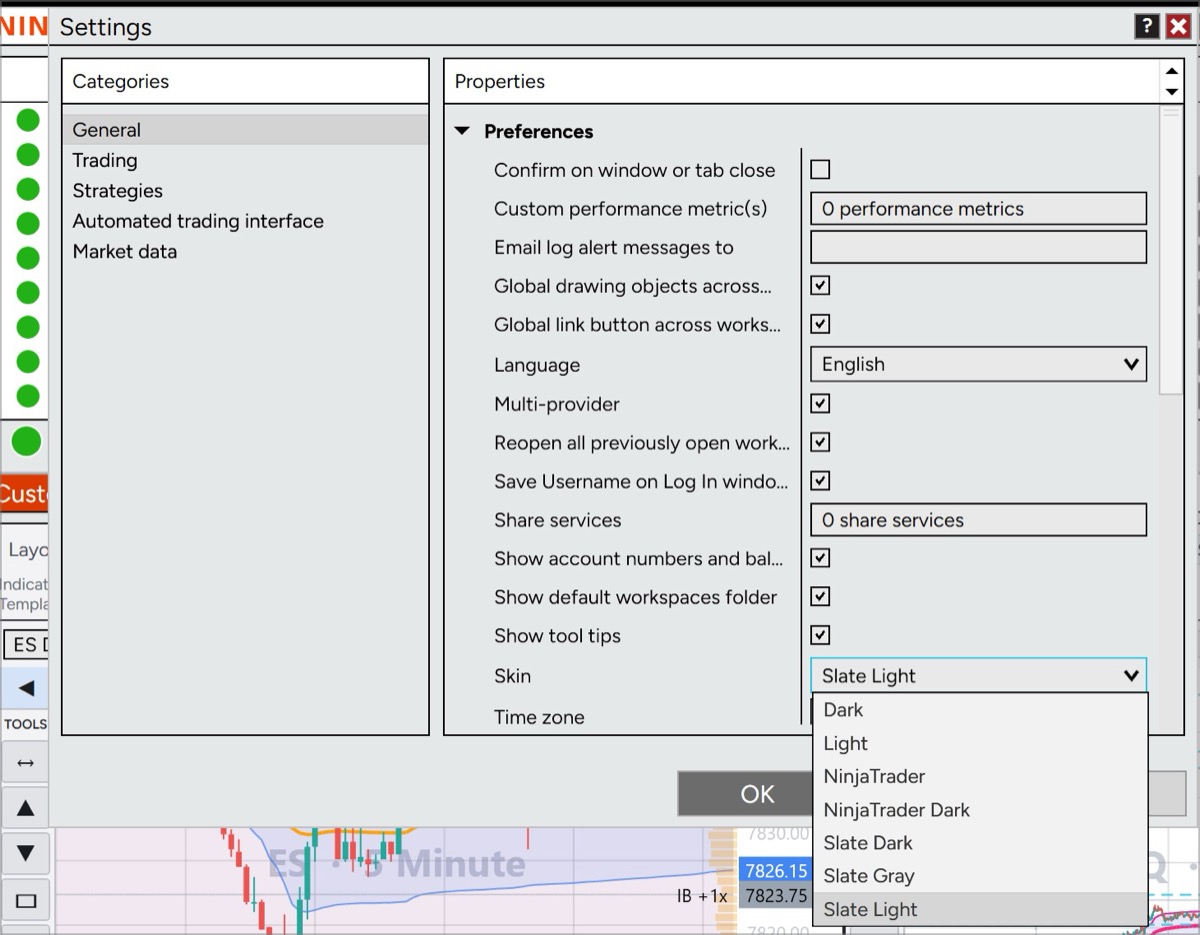
There is no separate light/dark theme to hunt for in two places any more. Settings → Appearance → Theme is a single setting with three choices:
| Theme | What it does |
|---|---|
| Match NinjaTrader skin | Follows whichever of the seven skins you have set in NinjaTrader — the default, and nothing to configure |
| Light / Dark | Forces that theme regardless of your NinjaTrader skin |
It applies to the chart and to panels and dialogs together. Underneath it, In effect now tells you which theme is active and why — useful when the answer is “because your NinjaTrader skin says so” rather than anything you set here.
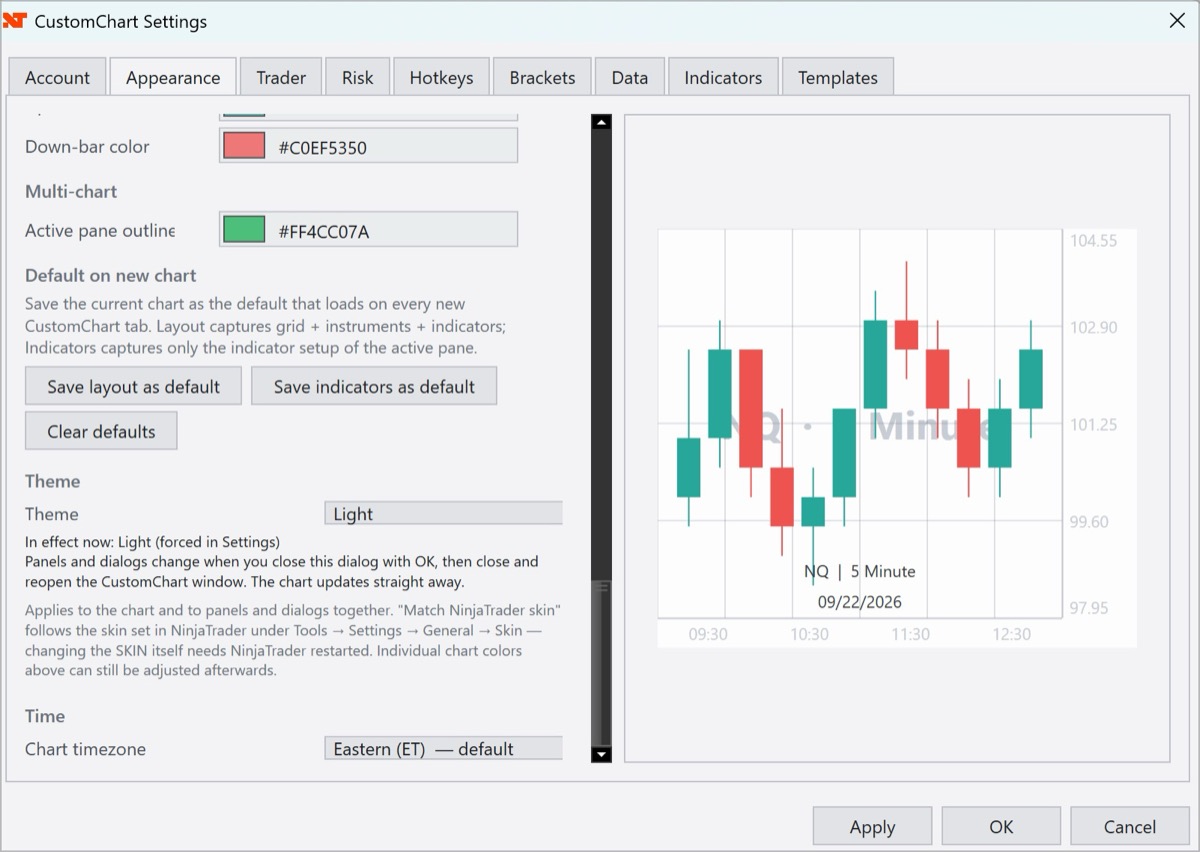
Your individual chart colors are still yours. The theme sets them coherently, and the swatches above it can still be adjusted afterwards.
Trade execution markers
New section in v1.19: Settings → Appearance → Trade execution markers sets the shape, fill and size of each kind of fill marker, and a Halo around markers (keeps them visible over candles). The halo is on after you update; untick it to turn it off. The checkbox that shows or hides the markers moved here from Current price line.
03 — Indicators
The built-ins below, plus whatever NinjaTrader indicators it can discover on your system.
Open the picker from the ⚙ gear on any pane. Available on the left, On chart on the right; double-click or use Add ›. Double-click an active indicator to open its settings.
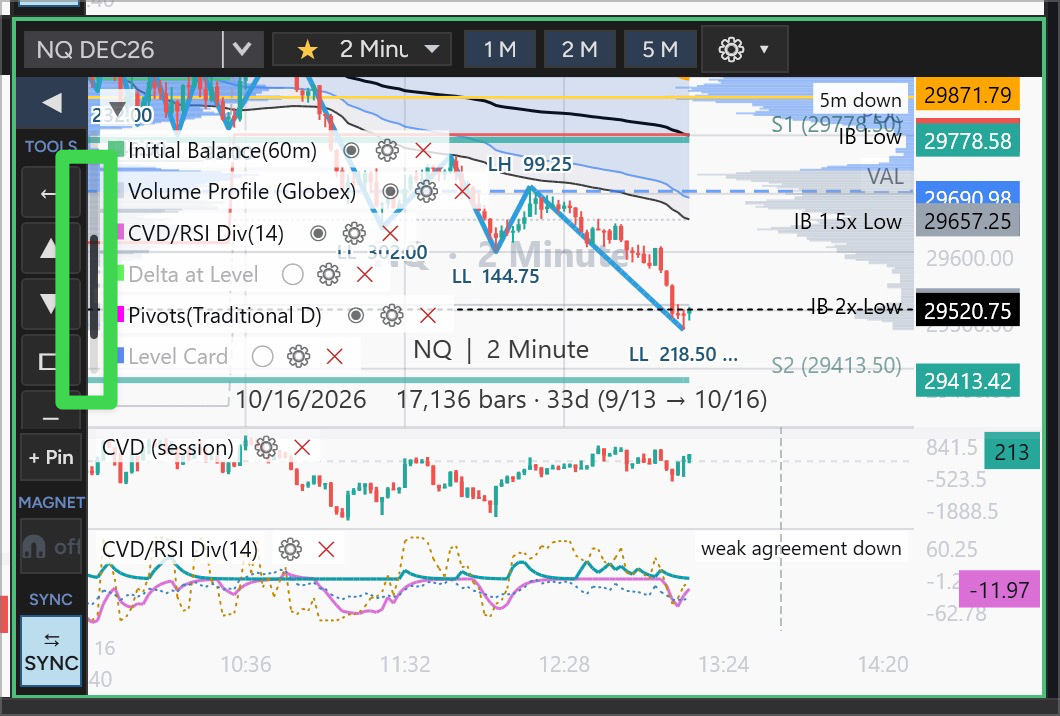
New in v1.20: the indicator legend scrolls. When a pane is too small to list every indicator, a thin bar appears at the legend’s left edge. Drag it, click above or below it to page, or use the mouse wheel over the list. Elsewhere on the chart the wheel still zooms.
| Indicator | What it answers |
|---|---|
| VWAP | Where is the average participant positioned? Four anchors — RTH, Globex, Weekly, Monthly — plus Anchored VWAP from any bar you click. |
| Volume Profile | Which prices actually traded. Visible range, RTH, Globex, or a multi-day Composite. |
| Pivot Points | Tomorrow’s reference levels from today’s range. Six methods, Daily / Weekly / Monthly. |
| Initial Balance | The first hour’s range, and the extensions above and below it. |
| CVD | Cumulative volume delta — is buying or selling pressure accumulating? |
| Delta at Level | What did order flow do at the levels you watch — pushed through, or absorbed? New in v1.19. |
| CVD / RSI Divergence | Does order flow confirm the move? A one-line reading in its own pane. New in v1.19. |
| Paired Index (“vs ES”) | Does the other index confirm NQ’s new highs and lows? New in v1.19. |
| Level Card | Everything about the nearest level in one floating card. New in v1.19. |
| Rotation | Which way is price swinging, on this timeframe and the bigger ones? Zig-zag swings with their structure and size. New in v1.20. |
| Volume | Per-bar volume, in its own pane. |
| Bollinger / Keltner / Donchian / ATR Bands | Four takes on “is this far from normal?” |
| SMA / EMA / WMA | Trend, three ways. |
| RSI / MACD / ATR | Momentum and range, in the oscillator pane. |
Order flow
CVD now comes from NinjaTrader’s own order-flow (Volumetric) engine when your NinjaTrader license includes Order Flow+ — Data source → NT Order Flow (matches NT8’s CVD) — so it matches NinjaTrader’s cumulative delta minute for minute, on every timeframe. Without Order Flow+, Independent tick classification counts the trades itself, as before.
Start counting at is now one of two choices: Globex open (18:00 ET), the default, or RTH open (this instrument).
Delta at Level measures the net order flow while price was at each level you tick under Levels to watch in its settings, and what price did next. Each level gets a plain verdict: pushed through (the aggressor won — nobody defended it), absorbed (heavy buying or selling went in and price finished the other side — a side is defending that price), at level or too soon to call (no outcome yet), too light to call, or no flow yet. Green means buyers won and red means sellers won; the +/− figure tells you who was pushing. A line at the top right sums it up, for example “6 levels · 4 through · 2 undecided · one-way up”.
CVD / RSI Divergence is an oscillator pane with a one-line reading such as “flow confirms down” or “no commitment”. Paired Index (“vs ES”) says whether NQ’s new highs and lows are confirmed by ES — “ES not confirming the high”, for instance. Level Card is a floating card for the nearest level: earlier touches, right now, volume against normal for the time of day, momentum and vs ES. Drag it to move it, pin it, fold it, and choose its rows.
“loading order flow…” and “order flow stalled · reloading…” (new in v1.20) appear in the CVD and CVD/RSI Div panes, in Delta at Level’s summary spot and on the Level Card while order flow loads or reloads. What it means: CustomChart noticed that order flow stopped while trades were still arriving — usually after a price feed connected or reconnected — and is reloading it by itself. Wait about a minute: it reloads within about 30 seconds after a connection comes up, and within about 90 seconds otherwise. Until then it shows the caption rather than a number that may be wrong.
From v1.20, Delta at Level never gives a verdict on a zero reading: a level with no order flow behind it counts as too light to call.
Rotation
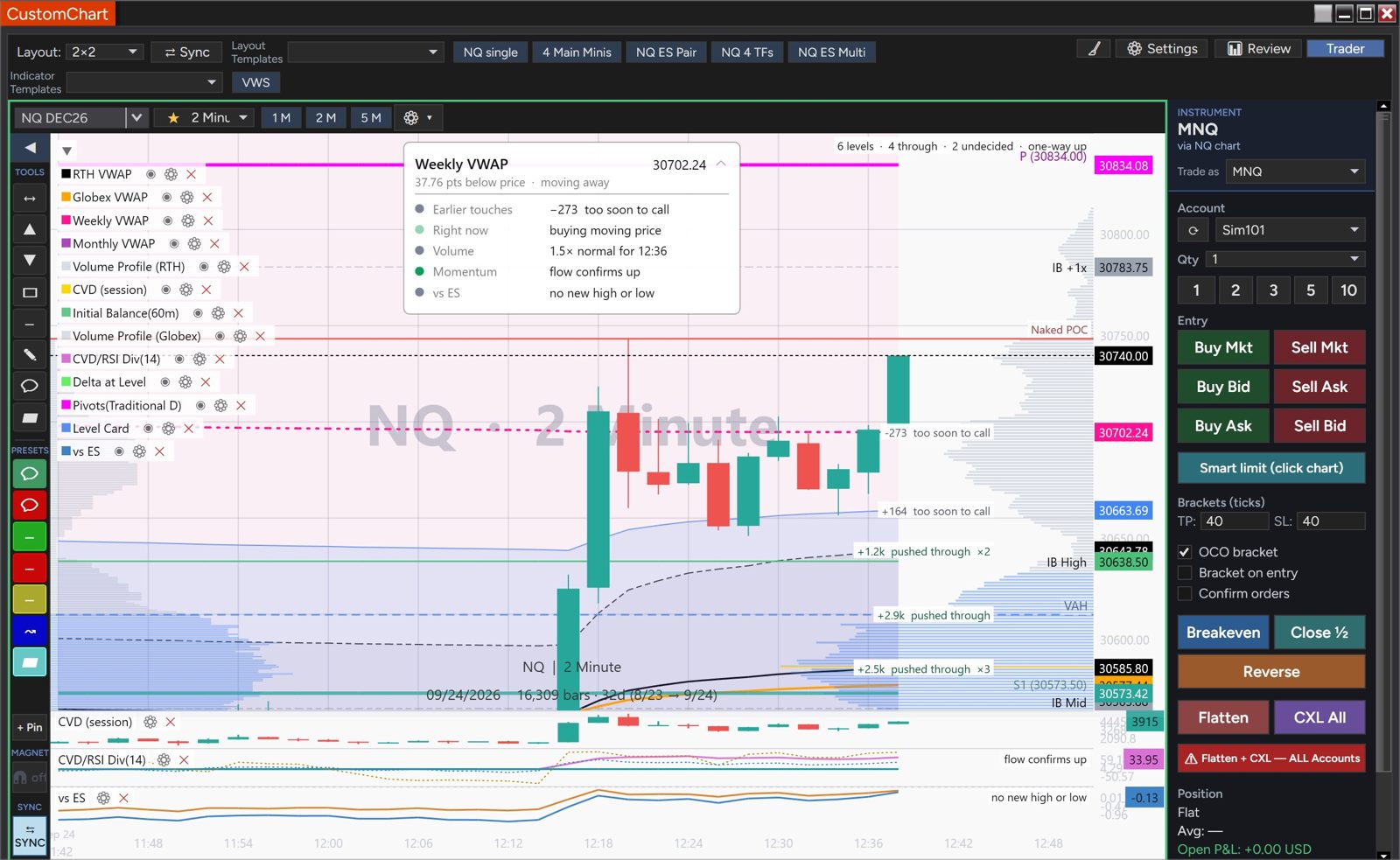
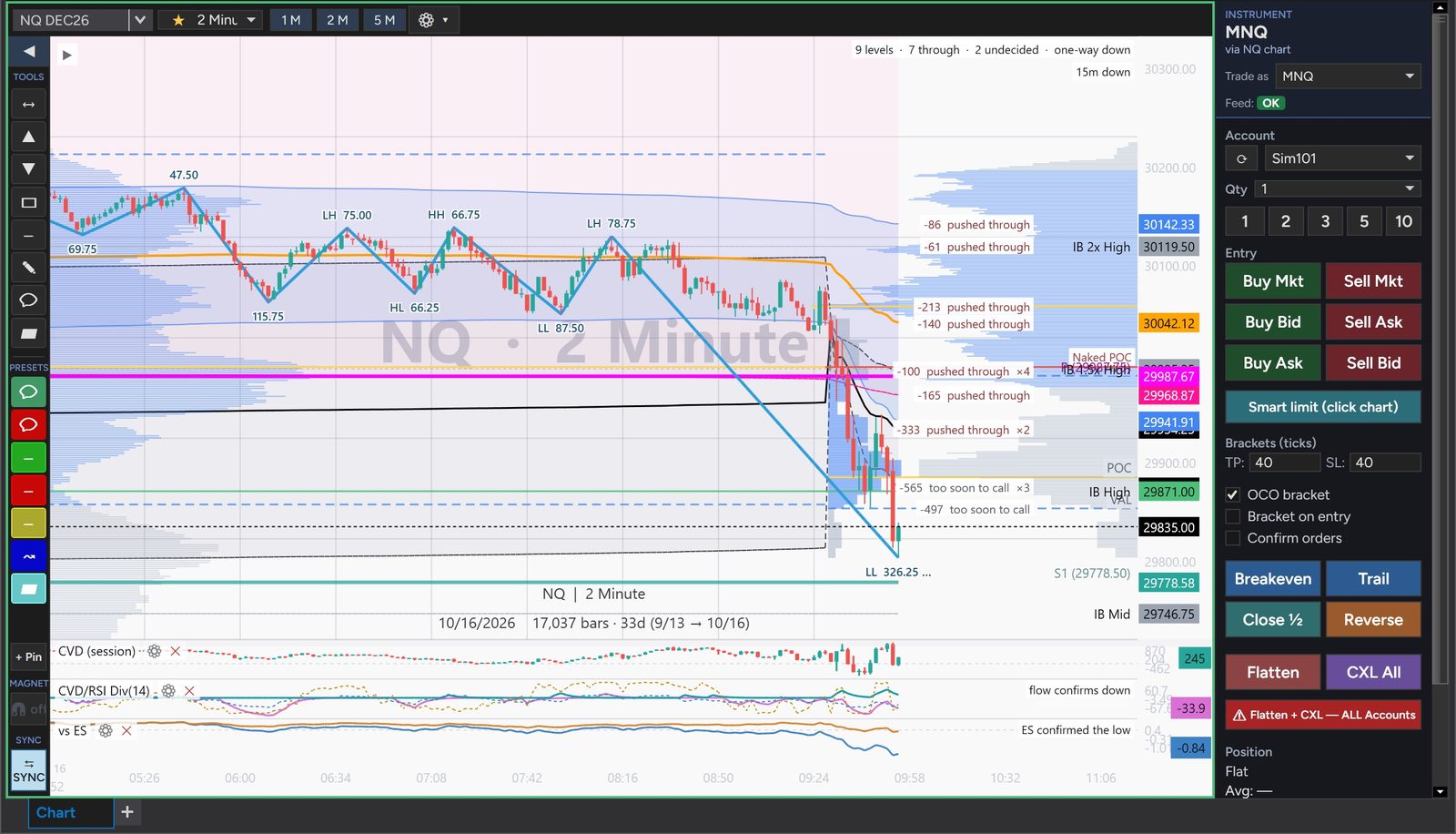
Rotation (new in v1.20) draws price’s swings as a zig-zag, each labeled with its structure — HH / HL / LH / LL — and its size in points. Find it in the indicator picker as Rotation (zig-zag swings, multi-timeframe).
Up to three rotations run at once, each from this chart’s bars or from 5-, 10-, 15-, 30- or 60-minute bars built from them, so you can see where this chart’s swing sits inside the bigger ones. The leg still forming is dashed until price confirms the swing. A summary line names each rotation’s direction, for example 15m down.
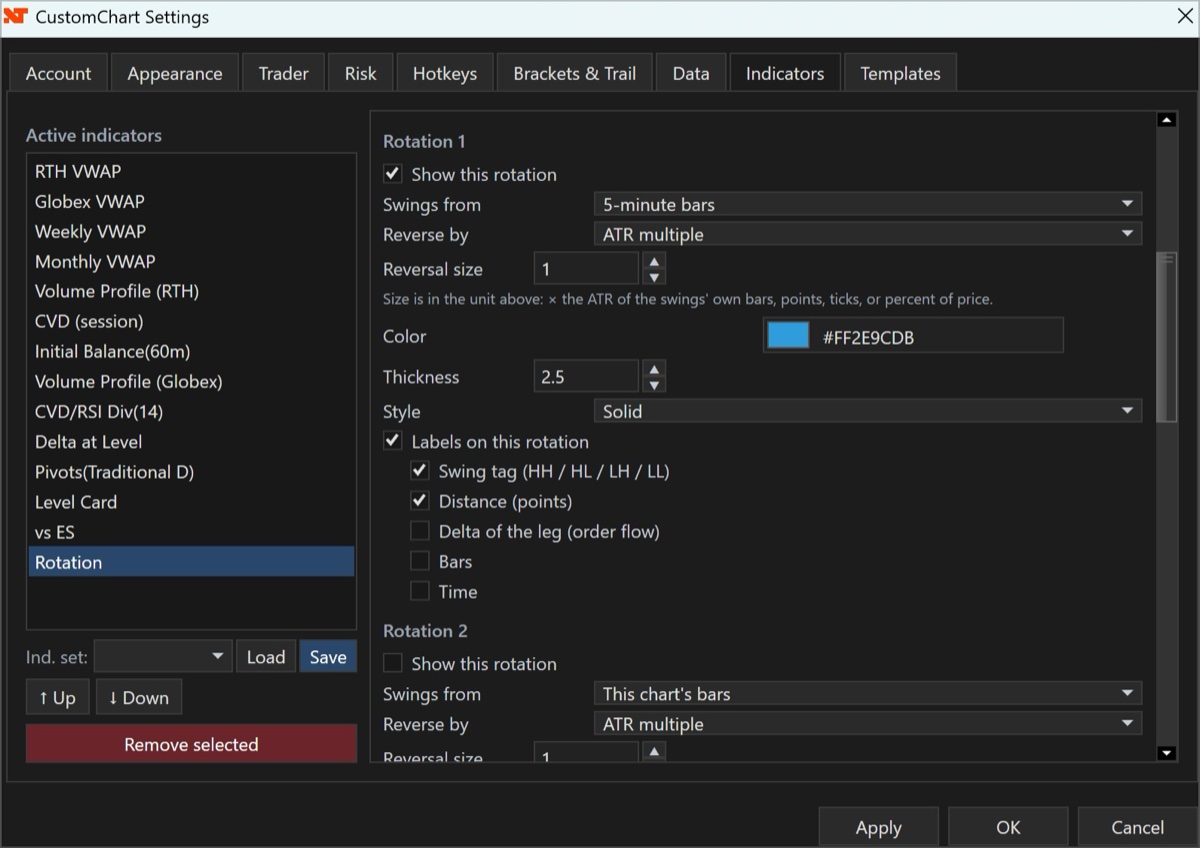
Its settings, under Settings → Indicators → Rotation, open with How to read this. Then, for each of Rotation 1, 2 and 3:
| Setting | What it does |
|---|---|
| Show this rotation | Turns this rotation on or off |
| Swings from | This chart’s bars, or 5-, 10-, 15-, 30- or 60-minute bars |
| Reverse by | ATR multiple, Points, Ticks or Percent — how far price must turn before a new swing starts |
| Reversal size | That amount, in the unit above |
| Color, Thickness, Style | How the line is drawn |
| Labels on this rotation | Which labels to show: Swing tag (HH / HL / LH / LL), Distance (points), Delta of the leg (order flow), Bars and Time |
Below them, Labels (all rotations) sets Label size, Full labels on last (default 6 swings — older swings show their size only, and labels never overlap), and Label color: Each rotation’s line color or One color for all labels, with All-labels color. Summary line (direction of each rotation) and ATR period (default 14) come last.
Defaults: Rotation 1 is on — 15-minute bars, reversing at 1× ATR(14), blue, thickness 2.5, labeled with swing tag and distance. Rotation 2 (this chart’s bars, gold) and Rotation 3 (60-minute bars, purple) are off.
When a chart can’t build the bars you chose — it isn’t a minute chart, or it is already at or above that timeframe — the rotation uses the chart’s own bars, and the settings say so. When two or more rotations are labeled, each label starts with its rotation’s name, for example 15m 70.00.
Pivot Points
Six methods — Traditional, Fibonacci, Woodie, Classic, DM and Camarilla — anchored Daily, Weekly or Monthly, with levels out to R5/S5 and per-level visibility.
Levels a method doesn’t define simply aren’t drawn. DM publishes only P, R1 and S1; Fibonacci stops at 3; only Traditional and Camarilla reach 5. Nothing is invented to fill the gap.
Use daily-based values is on by default. It reads the exchange’s own daily bar so the prior close is the settlement price — which is what charting platforms use, and what makes the levels agree with them. It also makes the levels immune to gaps in your intraday data.
Initial Balance
IB is measured on the clock — the session open plus N minutes, 60 by default — not on whichever bars happen to fall inside it. The levels are held back until the window closes, so nothing is drawn before the market established it.
From v1.19 the extensions are named 1.5x / 2x / 3x — the old “+1x” is now “2x”, at the same price — with a new 1.5x level. The 1.5x level is off on charts you already have: tick Include the 1.5x level in the Initial Balance indicator’s settings.
Extend levels until next IB is on by default: each session’s IB stays on the chart overnight until the next one forms, rather than disappearing at midnight. Turn it off in the indicator’s settings if you prefer the levels to clear.
04 — How sessions are decided
Read this one. Nearly every “these levels look wrong” question comes back to it.
A futures trading day is not a calendar day. The CME session opens at 18:00 ET and settles at 17:00 ET the next day — so Monday evening’s trading belongs to Tuesday’s session. Anything anchored to a session follows that boundary, not midnight.
| Anchor | Starts at |
|---|---|
| Globex / Session | 18:00 ET — the full overnight session |
| RTH | The instrument’s own cash open — 09:30 ET for index futures, 08:20 for COMEX metals, 09:00 for NYMEX energy |
| Weekly | The Sunday 18:00 ET open that begins Monday’s session |
| Monthly | The 18:00 ET open that begins the month’s first trading day — the evening before the 1st |
| Pivots (Daily) | The same 18:00 ET boundary, using the prior completed session |
VWAP price source
With a VWAP selected, Settings → Indicators → Price source sets which price each trade contributes to VWAP: OHLC4, HLC3, HLCC4, HL2 or Close. From v1.17 the default for new indicators is OHLC4; it was HLC3. Your saved settings are not migrated — a workspace that already has a price source keeps the value you chose.
Worth knowing if you compare against TradingView: TradingView’s default is HLC3, so a fresh CustomChart and a fresh TradingView chart will now differ by a small, permanent amount where they used to agree. That is the setting, not a fault. Set the price source to HLC3 if you want them to line up.
Timeframe doesn’t change a level. VWAP, Initial Balance and Pivot Points read the same on 1, 2, 5 or 60 minute charts. If a level moves when you change timeframe, that’s a bug worth reporting — not a setting.
One known limit: the weekend roll is handled, but a mid-week holiday can still start a session that didn’t really trade. Worth knowing around Thanksgiving and Christmas.
05 — Drawing tools
Anchored to bar time and price, so they stay put through pan and zoom.
The tool rail runs down the left edge: trendlines and rays, horizontal and vertical lines, rectangles and channels, Fibonacci, measure, text and callouts, comment boxes and bubbles, price alerts, volume-profile ranges, and a multi-anchor running trendline.
Magnet
The MAGNET toggle snaps placement to a candle’s open, high, low or close — pick which in the settings. Off by default, since most annotations want free placement.
Presets
The colored chips under PRESETS are saved styles. Click one to arm the next drawing with it. Right-click a drawing you’ve styled to save it as the default for that tool.
Long / Short position tool
Drops an entry with a target and a stop, showing the distance in ticks, points or dollars, and the resulting R:R. Labels can sit inside the box or outside it — Label side — with adjustable size, opacity and an optional background plate. Placing them outside keeps the price action clear.
06 — Trading
The Trader panel sits on the right. Trader in the toolbar shows and hides it.
Trade as at the top decides which contract an order goes to — orders go to the instrument the Trader panel shows. From v1.19, brackets, Trail and Breakeven each belong to one account and one instrument: switching the Trader to a different account no longer touches the previous account’s bracket.
Is the price feed current?
New in v1.19 and always on: a red warning across the chart when prices may be out of date — NO DATA for Ns — prices may be stale when prices stop arriving, PRICE FEED LOST (…) — prices may be stale when NinjaTrader loses its price connection, and DATA DELAYED Ns — prices are behind the market when they arrive more than 3 seconds late.
Feed at the top of the Trader panel, under Trade as, reads OK while prices are current, or how many seconds behind they are (amber from 1 s, red from 3 s). It is on by default; turn it off in Settings → Data → Feed delay (“Show feed delay (how far live prices lag the exchange)”). The red warning appears either way.
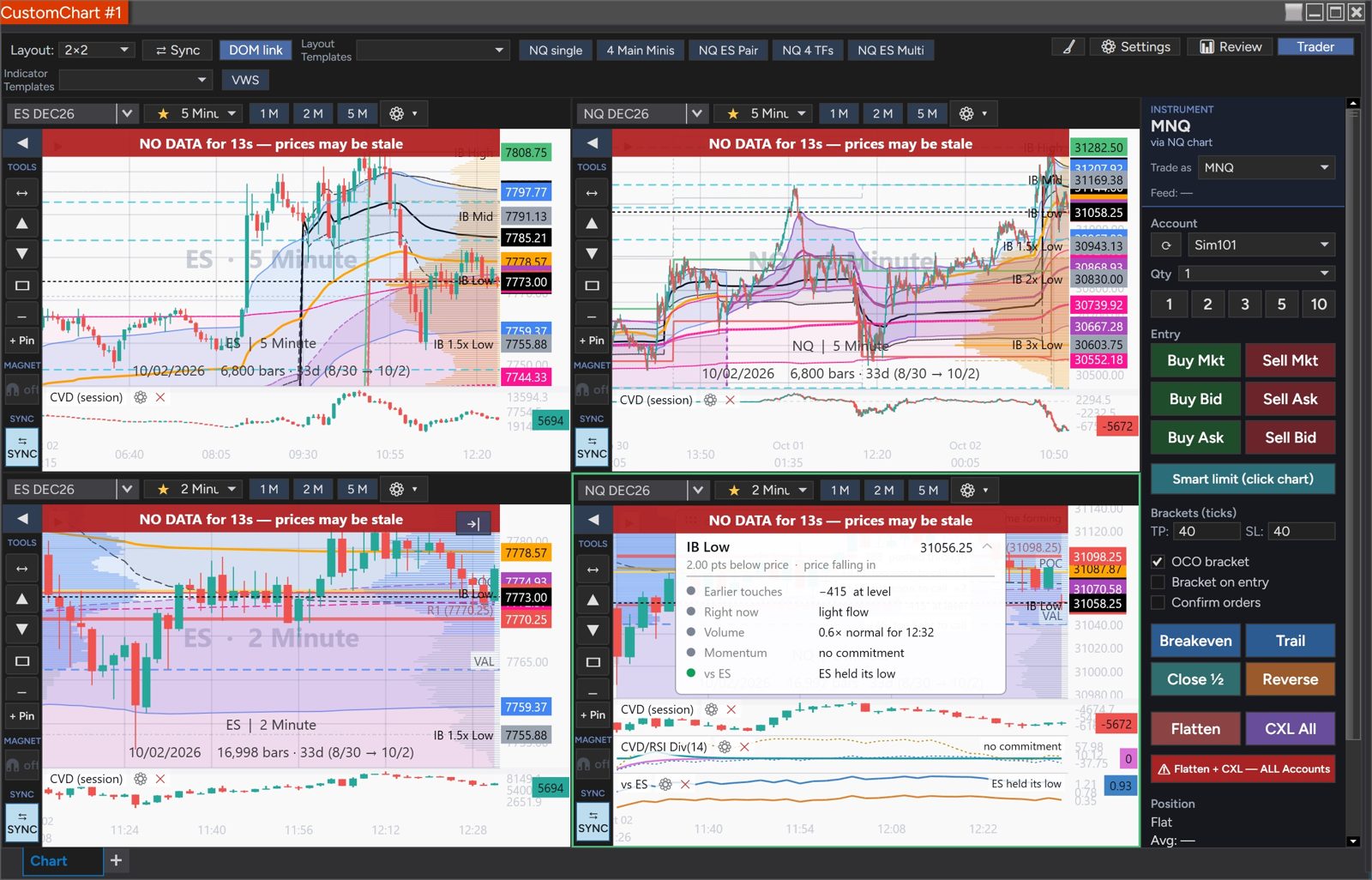
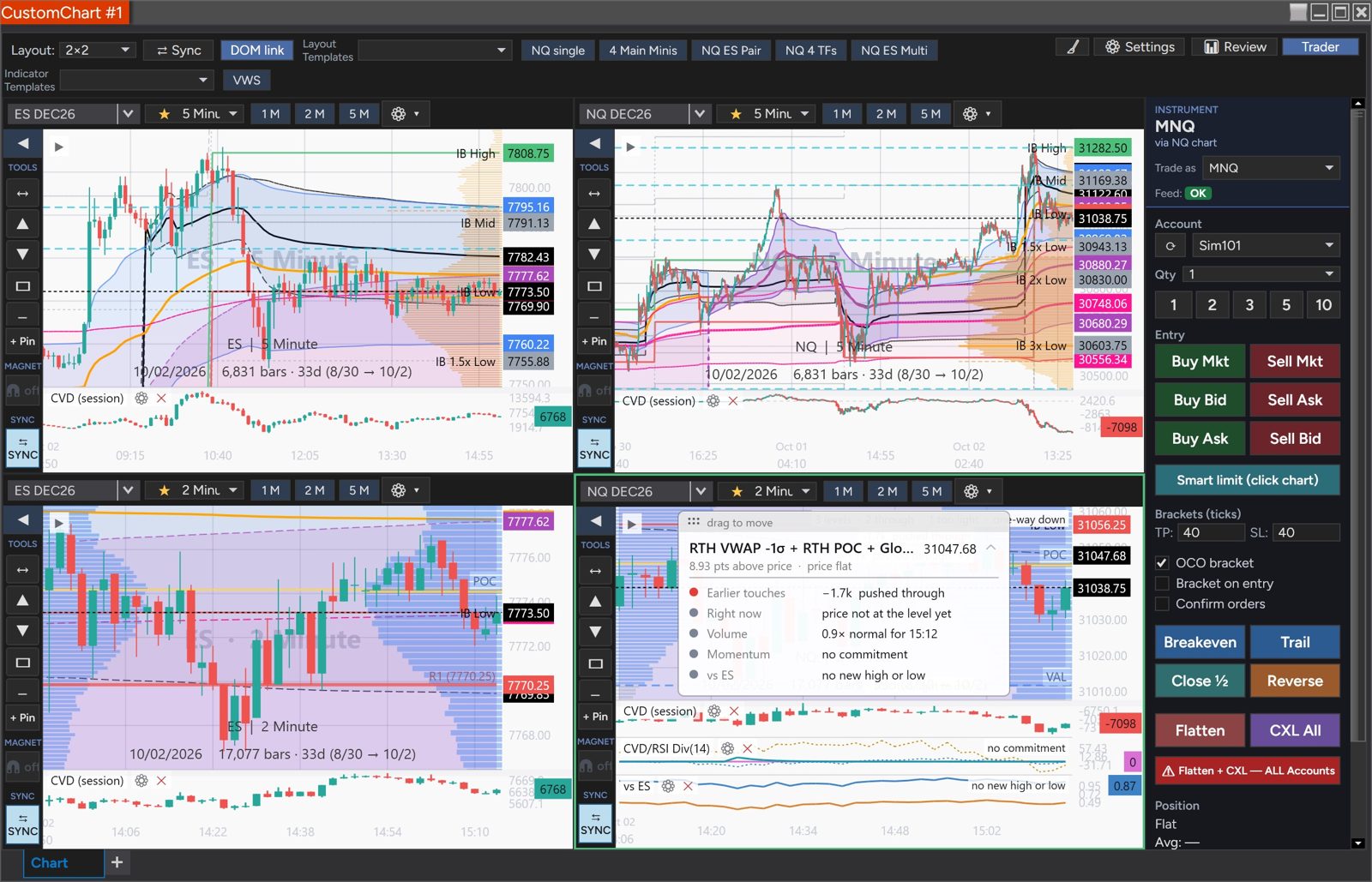
Pick the account and quantity at the top, then trade with Buy Mkt / Sell Mkt, Buy Bid / Sell Ask for passive entries, or Buy Ask / Sell Bid to cross the spread. Smart limit (click chart) arms the chart so your next click places a limit at that price — above the market sells, below it buys, and a click at the market is rejected because the limit would fill immediately.
Placing an order from the chart
Right-click any chart pane and the menu offers Buy Limit and Sell Limit at the price you clicked, with the price shown in the menu item so there is no doubt where it lands.
There are also armed click modes — Buy limit, Sell limit and Smart limit. Smart picks the side for you from where you click. The other two let you choose the side yourself, and that is where the prompt below comes in.
Rolled contracts
From v1.16, a pane still showing a futures contract that has already rolled gets a banner across the chart — TRADING BLOCKED — NQ SEP26 rolled 7d ago, not the front month — and the Trader will not accept new entries on that pane. The gear menu offers Roll to NQ DEC26, or whatever the next contract is, which moves the pane and reloads its data in one click.
This matters because a rolled contract does not look wrong. Same symbol, same-looking candles, a price that still moves. Gear → Diagnostics… reports how many days until the pane’s contract rolls, or how long ago it did.
The roll is not the expiry, and CustomChart keys off the roll. A contract typically rolls about a week before it expires, and in that window the old contract is still perfectly tradeable — it just has a thinning book and a price drifting away from the front month. That is the window worth catching: not the day the contract dies, but the days it is alive and quietly no longer where the market is.
Brackets
Set target and stop in ticks. OCO bracket links them so filling one cancels the other. Bracket on entry attaches them automatically to every entry. Confirm orders adds a confirmation step — worth leaving on until the layout is familiar.
Settings → Brackets & Trail → Bracket distance mode is Fixed ticks or ATR-based. From v1.19, ATR-based brackets use the market’s real ATR — before, they used a fixed 16 ticks whatever the market did, so if you use ATR brackets, your distances will change. Until the ATR has loaded, a bracket uses your tick distances and says so.
ATR levels on the chart (“Show entry ± ½, 1, 2 and 3 ATR while in a trade”) is on by default, in the same tab. Green/red bracket zones now also show for brackets placed elsewhere, for example from CustomDOM.
Managing a position
| Control | Does |
|---|---|
| Breakeven | Moves every stop on this account and instrument to breakeven — including stops placed in CustomDOM or NinjaTrader — without adding a second one. It covers the whole position, rounds toward profit, and after a scale-out follows the remaining entry, only ever tighter. It works once price has moved past your entry. |
| Trail | Trails your stop by ATR (½, 1, 2 or 3), ticks or points — choose in Settings → Brackets & Trail → Trailing stop (the Trail button): trail by. New in v1.19. |
| Close ½ | Exits half the position, leaving the rest working |
| Reverse | Cancels the orders on the closing side first, then flattens and opens the same size the other way |
| Flatten | Cancels every working order on the instrument — brackets included — then closes the position on this account, the same as NinjaTrader’s own Flatten |
| CXL All | Cancels working orders on this account |
| Flatten + CXL | Both, across every account — the panic button |
Any of these can be bound to a key in Settings → Hotkeys.
Smart Breakeven
New in v1.19 and on by default: Settings → Risk → Smart Breakeven: Keep stops sized to the position. When you take contracts off, the stops protecting the rest shrink to match, and when you go flat they are canceled, so a leftover stop can’t open a position the other way.
07 — Trade Review
Replays a session with your fills on the chart. Trading is suspended while you’re in it.
Review in the toolbar switches modes. Pick a session from the date dropdown; today’s is there from the start and past sessions are kept as you trade them. A ✎ next to a date means you have drawings saved on that session — markup made while reviewing has always been kept and restored, so sessions you annotated long before this marker existed are already marked.
The ledger
Fills are grouped into positions — a header row with direction, total contracts, average entry and net P&L, the individual fills indented beneath, and a closing row. Scale-ins and scale-outs read as one trade.
Your per-lot numbers are unchanged. Pairing is FIFO, because that’s how brokers book it — the position row simply sums its fills. The average entry is there to anchor the plan tool and compute R, not to restate your P&L.
Planning a trade you took
Each position row has a Long ▸ / Short ▸ button that drops a plan tool at the average entry, ready to drag to the target and stop you actually intended. The TP, SL and R columns update as you drag. If you drew a plan by hand, one click links it and snaps its entry to your average fill.
Journaling
The notes button on a row opens a form covering rating, whether you followed your plan, up to three setups, a setup grade, emotional state, tags, notes and lessons. It’s pre-filled with everything the ledger already knows. Saving writes a comment bubble onto the chart, colored by the result and anchored to the entry candle.
Missed Setup appears on losing trades only: the valid setup that was there in the opposite direction. Leaving it blank means the read was right — and because the trade was never taken, it never counts toward any setup’s win rate.
Sending to TradersForge Journal
↗ Journal pushes a reviewed session across. Each position is matched to the corresponding trade, you confirm the matches, and Preview shows field by field what would change before anything is written.
The default mode only fills fields that are empty in your Journal — anything you’ve already written is flagged rather than replaced, and overwriting takes a deliberate choice. Requires a TradersForge Journal account on the Elite plan; paste the API key in Settings → Account.
08 — If something looks wrong
In the order worth checking.
Start here: the Diagnostics readout
New in v1.13. Gear menu → Diagnostics… shows what your VWAPs and Pivot Points are actually reading — the data source, the session anchor, and the prior session’s open, high, low and close behind your pivot levels. There is a Copy button.
Check the inputs before comparing the outputs. A level that looks wrong is almost always a correct calculation over a different session or a different data source, and this names both in one step rather than leaving it to be inferred from where the line ended up.
If you do open a ticket, paste the Diagnostics text. It settles in one message what a screenshot can take a long thread to establish.
A level disagrees with another platform
Check both are on the same session period first — see §04. Then check whether your intraday data has a gap: a hole in the bars narrows a session’s measured range. For pivots, Use daily-based values keeps the levels correct even when it does.
Small, steady differences from another platform are expected rather than a fault: CustomChart’s VWAP is computed from individual trades, while a charting package that builds it from bar averages will land a fraction away. Exact agreement would be the surprising result.
A red strip says NO DATA, DATA DELAYED or PRICE FEED LOST
CustomChart is telling you the prices on screen may not be current — see §06. Check the connection in Control Center → Connections first; PRICE FEED LOST and a long NO DATA usually mean NinjaTrader’s connection dropped. DATA DELAYED means prices are arriving late, which is the connection or the computer falling behind, not CustomChart. The strip clears by itself once prices are current.
My CVD changed after updating
v1.19 moved every saved CVD to Start counting at → Globex open once. If you counted from the RTH open, set it again — see §03.
CVD or Delta at Level says “order flow stalled · reloading…”
Nothing to fix — v1.20 noticed order flow stopped while trades were still arriving, usually after a price feed connected or reconnected, and is reloading it by itself. Wait about a minute; see §03. Before v1.20 the same thing left CVD flat until you reopened the window, so if you are on an older version, update.
The license check says it can’t connect
v1.20 says, when the license server no longer accepts its version:
Do exactly that: download the latest version and import it (see §01). Your license key and settings carry over. Any other license error ends “Try again, or contact support. If it keeps happening, install the latest version…” — try again first.
Older versions show different text after October 31, 2026. v1.19 shows “License validation error: the license server could not confirm this computer (HTTP 401). Try again, or contact support.” v1.18 and older show “Unable to validate license. Check your internet connection.” In both cases the fix is the same: install the latest version.
Bars stop arriving, or a pane says “no bars”
From v1.19 an empty pane says loading NQ history… (with its own instrument) while its data is on the way, and why if the request fails, instead of “no bars”.
- Open a standard NinjaTrader chart on the same instrument and timeframe. Empty there too means it’s NinjaTrader’s data, not CustomChart — and nothing in CustomChart’s settings will fix it. Turn Tick Replay off for that test (Chart Properties → Data Series): with it on, the chart sits at “Loading tick replay…” for a long time and answers a different question — whether NinjaTrader can deliver a day of ticks, not whether it can deliver bars.
- Control Center → Connections → disconnect, then reconnect. NinjaTrader picks a historical-data server per session, and a bad one returns no history at all. Reconnecting reassigns it. This is the fix in most cases.
- To confirm that’s what happened, look in Control Center → Log for the line naming the historical-data server you drew —
Using HDS (hds-us-nt-0NN.ninjatrader.com/…). You get a fresh assignment per connection, so after reconnecting you should see a different server than the one that was failing. That is what tells you the reconnect did something, rather than leaving you to hope.
There will be no error to find. NinjaTrader does not treat a bad historical-data server as a failure, so the Log reads Connected throughout — the server name is the useful part, not a message about it. The Messages tab is the wrong place to look: it carries account and subscription notices, which can be weeks old and say nothing about today.
To refill a gap, NinjaTrader won’t re-download a range it believes it already has — a partial file still counts. Use Tools → Historical Data Manager to delete the range first, then load it.
The warning badge
A ⚠ badge in the toolbar means an indicator threw an error. Click it for the details. One misbehaving indicator is isolated and won’t take the chart down with it — and a clean badge is informative too: it means nothing crashed, so the cause is elsewhere.
Initial Balance sits at a different price on two timeframes
It shouldn’t — IB is measured on the clock and is timeframe-invariant. Report it.
CHANGELOG.txt inside your download.